Local Generative AI

Best PCs for Generative AI

Built for local AI. Built around the models you actually run.

Running generative AI locally changes how you should configure a workstation.

For image and video generation, the GPU does most of the heavy lifting. VRAM determines how much can fit. System memory, storage and the CPU then support the wider workflow.

Choosing the right hardware is less about buying the most expensive PC possible and more about understanding the models you actually want to run.

First things first

Is the AI actually running on your PC?

Not every AI tool runs on your computer. Before choosing hardware, it's worth knowing where the work actually happens.

Somebody else's hardware

Cloud AI

The workload happens on the provider's servers.

Many browser based and hosted AI services perform most or all of their processing in the cloud. Your internet connection, subscription level and the service provider may matter far more than installing an RTX 5090.

Typically

  • Browser based AI tools
  • Hosted generation services
  • Credit and subscription platforms

Your workstation

Local AI

The model runs on your own computer.

Local AI changes the hardware equation. When the model runs on your own computer, your GPU becomes the engine. More VRAM can determine which models you can run at all. More GPU performance can determine how long each generation takes.

Examples

  • ComfyUI
  • Stable Diffusion and SDXL
  • FLUX
  • Local AI video models

A cloud AI service doesn't necessarily get faster because you install a larger GPU locally.

This guide is about local AI.

Spend it where AI uses it

Your GPU should get the biggest slice of the budget.

A generative AI workstation flips some traditional PC buying advice on its head.

An extreme processor paired with a modest graphics card is usually the wrong balance. For most local image and video generation, we'd rather give you more GPU performance, more VRAM, enough system RAM and fast model storage before jumping to an unnecessarily expensive CPU.

See what makes local AI fast
What matters

What makes generative AI fast?

Local AI leans on the graphics card far more than anything else.

Priority: Critical

This is the engine.

For local generative AI, the GPU normally does most of the computational work. Image and video diffusion models run on the graphics card's parallel compute and tensor hardware, so the GPU largely decides how long each generation takes.

Three characteristics matter most: how much VRAM the card has, how quickly it can move data through that memory (memory bandwidth), and its raw compute performance.

For local AI, software support matters as much as raw specifications. Many popular generative AI applications, custom nodes and extensions are developed and optimised around NVIDIA CUDA first. AMD Radeon support exists and continues to improve, so we check compatibility against the models and software you actually use before recommending it.

Priority: Critical, often the limit

VRAM decides what fits.

GPU performance tells us how quickly a model may run. VRAM, the graphics card's own memory, can determine whether it runs at all.

The model and the working data for each generation need to sit in VRAM. Larger models, higher resolutions, video generation, multiple ControlNets, bigger batches and more complex node graphs all push that requirement up.

When a workflow doesn't fit, it either fails or the software has to shuffle data to and from much slower system memory, and generation slows dramatically.

16GBStrong starting point
Many Stable Diffusion, SDXL and ComfyUI image workflows.
32GBSerious local AI
Room for larger models, heavier workflows and AI video.

More VRAM isn't automatically faster. But not enough VRAM can stop a workflow running efficiently, or at all.
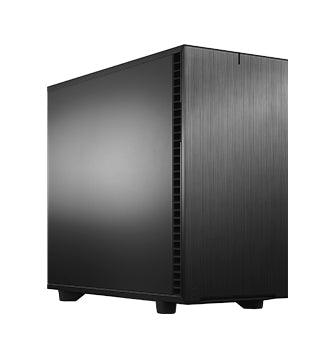
How much VRAM do you need?

Priority: Important

Give the GPU room to work.

System RAM holds everything around the model: the operating system, ComfyUI or your chosen interface, models waiting to be loaded, image editors, browsers and supporting tools.

A useful starting point is at least twice as much system RAM as total GPU VRAM, so a 32GB graphics card pairs naturally with 64GB of RAM. It's guidance rather than a rule, but it stops the rest of the workflow becoming the bottleneck.

How much RAM do you need?

Priority: Supporting

Don't spend here first.

More CPU cores do not automatically make image generation faster. Independent workstation testing across very different classes of processor has shown effectively no difference in image generation speed, because the GPU does the heavy computational work.

The CPU still matters. It handles system responsiveness, preprocessing and data preparation, decompression, video encoding, file handling and the applications running alongside AI, such as Photoshop or Lightroom. It also sets how many PCI Express lanes are available, which becomes important with multiple GPUs.

For a single GPU creator workstation, a modern AMD Ryzen 7 or Ryzen 9, or an equivalent Intel processor, is an excellent pairing. Workstation processors such as Threadripper Pro earn their place when a build needs multiple GPUs, extra PCIe lanes or very large memory capacities, or when AI is one part of a much larger compute workflow.

Buy enough CPU to feed the workflow. Put the serious money into the GPU.

Priority: Important

Models get big. Libraries get bigger.

Checkpoints, diffusion models, LoRAs, VAEs, ControlNet models and embeddings build up quickly, and a single modern model can run to many gigabytes. Generated images and AI video add to that every day.

Fast NVMe storage makes loading and switching models quicker and keeps large project folders manageable. We generally give the system, the model library and active projects their own drives.

How we'd arrange storage
The number that matters

How much VRAM do you need for generative AI?

For a new, serious generative AI workstation, 16GB of VRAM is a strong starting point, while 24GB to 32GB gives considerably more freedom for larger models and more demanding workflows.

Exact requirements change dramatically between models, precision and quantisation, resolution, batch size, extensions, workflow configuration and software versions. So rather than promise that a model needs exactly a certain amount, we think in tiers.

8GB

Entry / constrained

  • Smaller and optimised models
  • Lighter local AI workloads
  • Experimentation
  • Not where we'd start a serious new AI workstation

16GB

Strong starting point

  • Stable Diffusion and SDXL
  • Many ComfyUI image workflows
  • FLUX with the right settings
  • Creator focused local AI

24–32GB

Serious local AI

  • Larger models
  • More complex node graphs
  • Higher resolutions
  • Heavier workflows
  • More room for AI video

48GB+

Professional

  • Models that exceed consumer GPU memory
  • Research and development
  • Specialist creative workflows
  • Professional GPU territory

96GB

Extreme

  • Very large models
  • AI development and research
  • Specialist compute
  • Workloads consumer GPUs cannot hold

VRAM determines capacity.

GPU performance determines speed.

System memory

32GB can work. 64GB is where we'd start.

64GB of system RAM is our preferred starting point for a serious new single GPU generative AI workstation. As a rule of thumb, aim for at least twice your total GPU VRAM.

More system RAM doesn't usually make generation itself faster. It gives ComfyUI, image editors, browsers and supporting applications room to coexist, and gives models somewhere to wait before they're loaded onto the GPU.

32GB

Entry level

  • Lighter local AI workloads
  • Focused, single application use
  • Smaller graphics cards

64GB

Our preferred starting point

  • Serious single GPU AI workstations
  • ComfyUI alongside Photoshop or Lightroom
  • Browser tools and supporting applications
  • Pairs naturally with a 24GB to 32GB GPU

128GB

Advanced

  • High end single GPU workflows
  • AI video
  • Larger datasets
  • Heavier preprocessing
  • Advanced ComfyUI workflows

256GB+

Specialist

  • Multi GPU workstations
  • Large datasets
  • Research and development
  • Specialist compute environments

System RAM cannot replace VRAM at full GPU speed.

You need enough of both.

Storage

Give your model library its own drive.

Generative AI can consume storage surprisingly quickly.

System

1TB NVMe

  • Windows / Linux
  • Applications
  • ComfyUI
  • Utilities

Models

2TB to 4TB+ NVMe

  • Checkpoints
  • LoRAs
  • ControlNet
  • Diffusion models
  • Local AI assets

Projects

2TB to 4TB+ NVMe

  • Generated images
  • AI video
  • Source material
  • Current creative projects

Archive

High capacity storage

  • Completed projects
  • Datasets
  • Model archive
  • SSD / HDD / NAS

Keeping models on their own fast NVMe drive keeps switching checkpoints quick, and lets the library grow without crowding the system drive or your active projects.

Storage isn't backup.

Large AI model collections take time to build. Important projects should exist somewhere else too.

Built around what you're creating

Local AI isn't one workload.

Two creators can both open ComfyUI every morning and need very different workstations.

AI Image Generation

Stable Diffusion, SDXL, FLUX, ComfyUI and similar workflows. The GPU sets the pace, VRAM sets what fits, and fast storage keeps a growing model library responsive.

Priority

  1. GPU
  2. VRAM
  3. Storage

Advanced ComfyUI

Complex node graphs, multiple models, ControlNet, LoRAs and high resolution workflows. Memory becomes the limit first, so VRAM leads, with plenty of system RAM behind it.

Priority

  1. VRAM
  2. GPU
  3. 64GB+ RAM

AI Video

Video diffusion and generative video can raise both GPU compute and VRAM requirements significantly, and the output fills drives quickly. We quote around the specific model and workflow.

Priority

  1. VRAM
  2. GPU
  3. Storage
  4. RAM

AI + Photoshop / Lightroom

For photographers and creators adding local generative AI to an existing Adobe workflow. Here the CPU matters more than in pure AI work, because Photoshop and Lightroom Classic lean on it.

Priority

  1. Balanced GPU
  2. CPU
  3. 64GB RAM
  4. Fast NVMe

LoRA / Model Training

Training or fine tuning changes the requirements again, and not all training workloads are equivalent. A LoRA on a single GPU is a very different job from fine tuning a large model. Talk to us about what you plan to train.

Priority

  1. VRAM
  2. GPU
  3. RAM
  4. Storage

Multi User / Production

Studios and teams running multiple jobs simultaneously. This is where more than one GPU starts to make sense, and where platform, power and cooling matter as much as the cards. Talk to us about GPU compute.

Priority

  1. Multiple GPUs
  2. PCIe capacity
  3. Cooling and power
  4. RAM
Scale differently

More GPUs mean more work at once. Not necessarily one job faster.

Two GPUs don't automatically make one image twice as fast. Adding graphics cards generally doesn't make a single generation scale across every card. Multiple GPUs are more useful for parallel work: separate generations, batch processing, several models at once, multiple users, or individual workflows assigned to each card.

More GPUs also change the whole platform. They can need extra PCI Express lanes, a workstation CPU, a larger motherboard and chassis, a significantly larger power supply, additional cooling and careful thermal design.

One GPU

Single GPU

Right for most creators.

  • GPU 1: Generation A

Best for

  • Individual creators
  • ComfyUI, Stable Diffusion and FLUX
  • AI video experimentation
  • Most local AI workstations
Sonox

Two GPUs

Dual GPU

Two jobs at once.

  • GPU 1: Generation A
  • GPU 2: Generation B

Best for

  • Parallel workloads
  • Larger production pipelines
  • Multiple simultaneous jobs
  • Teams and development
Sonox G2

Four GPUs and more

Four GPU+

Four jobs at once.

  • GPU 1: Generation A
  • GPU 2: Generation B
  • GPU 3: Generation C
  • GPU 4: Generation D

Best for

  • Production environments
  • AI research
  • Multiple users
  • Batch inference
  • Specialist compute
Sonox G4 / GPU compute

Four GPUs means four jobs at once.

Not one image at four times the speed.

Current recommendation

What we'd build today.

Reviewed September 2026

AI hardware moves quickly, so we review new graphics cards as they arrive rather than permanently recommending one. For a single GPU creator workstation built for local generative AI today, we'd typically begin with:

GPU

NVIDIA GeForce RTX 5080 16GB as a strong entry point for serious local generative AI.

NVIDIA GeForce RTX 5090 32GB where larger models, higher resolutions, AI video or more demanding workflows justify the extra VRAM and compute.

CPU

Modern AMD Ryzen 7 / Ryzen 9 or equivalent Intel processor.

We don't overspend on the processor purely for generation performance.

Memory

64GB preferred starting point.

128GB for heavier workflows, AI video and several creative applications at once.

Storage

1TB system NVMe plus 2TB to 4TB+ fast model and project storage.

High capacity archive and backup alongside it.

Beyond one consumer GPU

Professional VRAM workstation. When models or workflows exceed consumer GPU memory, we move to professional NVIDIA RTX cards with 48GB, 96GB or other high VRAM configurations, chosen around the specific workload.

Multi GPU. We move to workstation platforms such as AMD Threadripper Pro when PCI Express lanes, memory capacity and physical GPU support genuinely require it.

Start with the workload

One GPU or many?

Scale to the workload. Most individual creators are best served by one powerful GPU in Sonox. Move to multiple GPUs when your work genuinely runs in parallel, not because four sounds better than one.

Sonox

Local AI workstation. Our best starting point for individual creators running a powerful single GPU: ComfyUI, Stable Diffusion, FLUX, AI image generation, AI video experimentation and mixed creative workflows.

Not sure whether you need one GPU or several?

Talk to our workstation team
Why local?

Your workstation. Your models. Your data.

Privacy

Sensitive source material doesn't necessarily need uploading to a third party AI service. How private a setup really is still depends on the software, extensions and connected services you use.

Control

Choose your own models, checkpoints, LoRAs and workflows, and keep the versions that work for you.

No per generation meter

Local generation runs on hardware you've already bought rather than charging per image or per credit. Whether that works out cheaper overall depends on how much you generate.

Experimentation

Build and modify advanced workflows without being limited to the controls a hosted platform chooses to give you.

Integration

Local AI can sit inside a wider Photoshop, Lightroom, video and creative pipeline on the same machine.

The model is only part of the workflow.

In a single day a creator might move between ComfyUI, Photoshop, Lightroom, Premiere Pro, DaVinci Resolve, Topaz, local AI models, web tools, cloud storage, a NAS and client delivery.

That's why we ask before we specify.

We configure around the whole workflow.

Which models and which interface do you use? Image, video, audio or text? At what resolution? Do you train models or only run them? Do you use ControlNet or LoRAs, or run several models at once? Which other creative applications do you use? Do multiple people need access? How much model storage do you have now, and where does your current system run out of performance?

We'll build around that.

Local AI

  • ComfyUI
  • Photoshop
  • Lightroom
  • Premiere Pro
  • DaVinci Resolve
  • Topaz
  • NAS / cloud storage

Why Utopia

Built here.
Supported here.

Built around your software: configured around your models, your tools and your complete creative workflow.

Talk to a specialist

Built in Scotland

Designed, assembled and tested by our team in Kilmarnock.

10 year labour warranty

Long-term support without labour charges hanging over the system.

Lifetime technical support

Speak to real people who understand the machine we built.

Designed for sustained load

AI can hold a GPU at full load for hours. Cooling, airflow, power and stability matter as much as the parts list.

Frequently asked questions

What is the best PC for generative AI?

For most local generative AI image and video workflows, the best PC prioritises GPU performance and VRAM before an extreme CPU.

The graphics card does most of the computational work, and its VRAM decides which models and workflows fit. A modern NVIDIA GeForce RTX GPU with at least 16GB of VRAM, 64GB of system RAM and fast NVMe storage is a strong general starting point, which we then adjust around the models, resolutions and applications you actually use.

What is the best GPU for generative AI?

There isn't one universal best GPU for generative AI; the right card depends on the models and workflows you run.

For current consumer hardware, independent workstation guidance points to the NVIDIA GeForce RTX 5080 16GB for many image workflows and the RTX 5090 32GB for larger models, higher resolutions and AI video. Professional NVIDIA RTX cards with 48GB or 96GB become relevant mainly when you need more VRAM than consumer cards offer. Our current recommendation is kept up to date as hardware changes.

How much VRAM do I need for generative AI?

16GB of VRAM is a strong starting point for many serious local image generation workflows, while 24GB to 32GB gives substantially more freedom for larger models and more demanding workflows.

Exact requirements vary with the model, precision or quantisation, resolution, batch size, extensions and workflow configuration, and they change as software is updated. Very large models and specialist work can justify 48GB or more on professional GPUs.

Is 8GB VRAM enough for Stable Diffusion?

It can be. Smaller and optimised Stable Diffusion workflows can run within 8GB of VRAM.

For a new workstation intended for serious generative AI work, though, we'd generally want more headroom. 8GB quickly becomes the limit with SDXL, higher resolutions, ControlNet and more complex ComfyUI workflows.

Is 16GB VRAM enough for ComfyUI?

For many ComfyUI image generation workflows, yes. 16GB of VRAM is a strong starting point.

How far it goes depends on the model, resolution, number of nodes, ControlNets and other elements in the workflow. Larger models, heavier node graphs and AI video benefit from 24GB to 32GB.

Is 32GB VRAM worth it for AI?

For demanding local AI workflows, 32GB of VRAM can be extremely valuable.

It provides significantly more headroom for larger models, complex image workflows, higher resolutions and emerging AI video applications. If your work fits comfortably in 16GB, the extra VRAM on its own won't make generation faster.

Does generative AI need a powerful CPU?

Usually not for generation itself. GPU accelerated generative AI relies primarily on the graphics card.

A capable CPU still matters for preprocessing, datasets, video encoding, creative software such as Photoshop and Lightroom running alongside AI, and for the PCI Express lanes that multiple GPUs need. For a single GPU workstation, a modern Ryzen 7, Ryzen 9 or equivalent Intel processor is an excellent pairing.

Is AMD or Intel better for generative AI?

For normal GPU accelerated generation, the CPU brand usually makes relatively little difference.

We choose the platform around the wider workflow: the other applications you run, how much memory you need, and whether multiple GPUs or extra expansion are likely.

Is NVIDIA or AMD better for generative AI?

NVIDIA currently has a significant compatibility advantage in many local generative AI applications, because NVIDIA CUDA is so widely supported.

AMD Radeon graphics can work well with supported workflows, and support continues to improve. We check compatibility against your specific models, interface and extensions before recommending either.

Does more RAM make Stable Diffusion faster?

Not usually. System RAM is about giving the overall workflow enough working memory, not about generation speed.

GPU VRAM is generally far more important to Stable Diffusion performance. Running short of system RAM can slow the whole machine, but adding more than you need won't speed up generation.

How much RAM do I need for a generative AI PC?

64GB of system RAM is our preferred starting point for a serious new single GPU generative AI workstation.

32GB can work for lighter workflows. 128GB or more becomes useful for heavy creative work, AI video, large datasets and more advanced configurations. A good rule of thumb is at least twice your total GPU VRAM.

Does Stable Diffusion need an SSD?

It can technically run without the fastest storage, but we strongly recommend fast NVMe SSD storage.

Model collections and generated media grow quickly, and fast local storage makes loading models, switching checkpoints and managing projects much more pleasant. We usually give models and projects their own drives.

Do two GPUs make Stable Diffusion twice as fast?

Not normally for a single generation. Adding GPUs generally doesn't make one image scale across every card.

Multiple GPUs are more useful for running jobs in parallel, running several models at once or serving several users.

Can ComfyUI use multiple GPUs?

Some ComfyUI workflows and configurations can distribute or assign work across multiple GPUs, but the behaviour depends on the software version and the nodes being used.

That's why we won't recommend a multi GPU system without understanding the workflow it needs to run.

Do I need a professional NVIDIA RTX card for AI?

Not necessarily. NVIDIA GeForce RTX cards are very capable local AI GPUs.

Professional RTX GPUs become particularly useful where greater VRAM capacity, platform features or professional deployment requirements justify their considerably higher cost.

Can I run AI locally instead of using the cloud?

Yes. Many generative AI models can run entirely or primarily on your own workstation.

The exact setup depends on the model and software. Tools such as ComfyUI run Stable Diffusion, SDXL and FLUX models locally, where your GPU, VRAM and storage decide what's possible.

Is local AI more private than cloud AI?

Potentially. Running models locally can reduce the need to upload source material to a third party service.

How private it really is depends on the software, extensions and services you connect, so we'd never offer a blanket guarantee.

Can you build a PC for ComfyUI?

Yes. We'll ask which models, resolutions and workflows you use, then configure the GPU and VRAM around them, with system RAM and model storage to match.

Can you build a PC for Stable Diffusion and Photoshop?

Yes. That's exactly why we configure around complete workflows rather than individual applications.

Photoshop leans on the CPU and memory while Stable Diffusion leans on the GPU, so we balance both. Our guide to the best PCs for Adobe Photoshop covers the Photoshop side in detail.

Can you build a workstation for AI video generation?

Yes. AI video is often particularly demanding on GPU performance, VRAM and storage.

Requirements vary widely between video models and workflows, so we quote around the specific model, resolution and length you want to generate.

template:page.GenerativeAILanding