Adobe Lightroom Classic

The Best PCs for Adobe Lightroom Classic

Built around your photography. Not just a specification sheet.

Lightroom Classic rewards a balanced PC. A fast processor keeps the Library and Develop modules feeling responsive, enough memory handles large RAW files and Photoshop, fast storage keeps huge photo libraries moving, and Adobe's growing range of AI tools makes the graphics card increasingly important too.

The trick isn't buying the most expensive components available. It's spending your budget where Lightroom will actually use it.

Where should you spend your Lightroom budget?

A £5,000 workstation isn't automatically faster in Lightroom than a thoughtfully configured £2,000 one.

Different components affect different parts of the workflow. We build Lightroom workstations around your camera, the size of your library, the applications you use alongside Lightroom and the way you actually work.

See what makes Lightroom fast
What matters

What makes Lightroom fast?

Every component speeds up a different part of Lightroom.

Priority: Critical

Fast cores beat lots of cores.

For most Lightroom Classic workflows, processor performance matters more than simply having huge numbers of CPU cores.

Lightroom benefits heavily from strong per core performance. Faster processors improve general responsiveness and help with tasks including importing images, generating previews and exporting finished photographs.

Higher core counts can improve heavily parallel tasks such as large exports, but a workstation CPU with dozens of cores isn't automatically faster in Lightroom.

That's why we don't simply recommend the most expensive CPU available.

For most photographers, a modern Intel Core Ultra 7 or AMD Ryzen 7 class processor is an excellent starting point. Higher end CPUs make sense for photographers processing very large batches, combining Lightroom with Photoshop or running other demanding creative applications.
Priority: Important, and growing

AI changed the conversation.

Lightroom hasn't traditionally needed an especially powerful graphics card.

AI is changing that.

Features such as Denoise, Select Subject, Select Sky, Super Resolution and Reflection Removal can make much greater use of GPU acceleration than traditional Lightroom editing.

For normal photo editing there's little reason to install an extreme gaming GPU purely for Lightroom. But if AI features are part of your everyday workflow, a modern GPU with plenty of dedicated video memory can noticeably reduce processing time.

8GBVRAM
Practical minimum for a new Lightroom workstation.
16GBVRAM
Our preferred target for heavier AI workflows and additional creative applications.

For many professional Lightroom users, a modern mid range NVIDIA RTX GPU makes considerably more sense than the flagship card.

Spend the difference somewhere you'll actually feel it.

Priority: Important

32GB to start. 64GB for serious work.

Lightroom itself can run with considerably less memory, but a professional photography workstation rarely runs Lightroom alone. Large RAW files, Photoshop, browser tabs, plugins and multiple images quickly increase memory usage.

How much memory you need

Priority: Important

Fast local NVMe keeps libraries moving.

For most Lightroom workstations we prefer fast NVMe storage for Windows, applications, the Lightroom catalog, previews and active photography projects.

How we lay out storage
Memory

32GB is where we'd start. 64GB is where many professionals should land.

32GB

Great

  • General Lightroom editing
  • Enthusiast photographers
  • Typical RAW workflows

64GB

Our professional sweet spot

  • Large Lightroom catalogs
  • High resolution cameras
  • Lightroom + Photoshop
  • Professional workflows

128GB+

Specialist

  • Huge panoramas
  • Complex Photoshop files
  • Focus stacking
  • Astrophotography
  • Multiple memory intensive applications

More RAM doesn't automatically make Lightroom faster.

Running out of RAM absolutely makes it slower.

Storage

Your storage should disappear into the workflow.

You shouldn't be waiting for photographs to open.

System

1TB NVMe

  • Windows
  • Lightroom
  • Photoshop
  • Applications

Active work

2TB to 4TB+ NVMe

  • Lightroom catalog
  • Previews
  • Current projects
  • Active photo library

Archive

High capacity storage

  • Completed projects
  • Long term library
  • NAS / SSD / HDD

External drives are brilliant for backup and archiving, but we generally recommend keeping the Lightroom catalog and current working files on fast local storage.

Storage isn't backup.

If your photographs matter, another copy should exist somewhere else.

Built around your photography

The right workstation depends on what you shoot.

Two photographers can both use Lightroom every day and need very different computers.

Wedding & Event

When you're importing and processing thousands of images from a shoot, CPU performance, fast storage and plenty of memory can save significant time across the working day.

Priority

  1. CPU
  2. 64GB RAM
  3. Fast local storage

Wildlife & Sport

Large bursts from modern high resolution cameras can create enormous libraries very quickly.

Fast storage, strong CPU performance and enough memory to move quickly through large shoots become particularly important. If AI Denoise is regularly used, give more budget to the GPU.

Priority

  1. CPU
  2. Storage
  3. GPU for AI

Landscape & Astro

Panoramas, HDR merges, focus stacks and high resolution files can dramatically increase memory requirements, particularly when Lightroom hands images to Photoshop.

Priority

  1. 64GB+ RAM
  2. CPU
  3. Fast storage

AI Heavy Editing

If Denoise, masking, Super Resolution, Reflection Removal and other AI tools are becoming part of the everyday workflow, allocate more of the budget to graphics performance.

Priority

  1. GPU
  2. 16GB VRAM target
  3. CPU

Lightroom doesn't work alone.

For most professional photographers, Lightroom is only one part of the workflow.

Photographs might move between Lightroom, Photoshop, Topaz, panorama software, tethering applications, browsers and cloud storage throughout the day.

That's why we don't optimise a workstation for a single benchmark.

We build it around the whole workflow.

Tell us what camera you use, how many photographs you typically process, which applications sit alongside Lightroom and where your existing computer slows you down.

We'll take it from there.

Lightroom Classic

  • Photoshop
  • Topaz
  • Panorama software
  • Tethering
  • Browser
  • Cloud storage
Current recommendation

What we'd build today.

Reviewed September 2026

Rather than permanently recommending one processor or graphics card, we continually review new hardware as it becomes available. For a well balanced Lightroom workstation today, we'd typically begin with:

CPU

Modern high performance Intel Core Ultra 7 or AMD Ryzen 7 class processor.

Memory

32GB minimum. 64GB preferred for professional workflows.

GPU

Modern dedicated NVIDIA RTX graphics.

8GB VRAM practical minimum. 16GB preferred for heavier AI workloads.

Storage

Fast NVMe system and active project storage, sized around your photography library.

Need something more specialised?

We can configure around high megapixel cameras, enormous libraries, studio environments, tethered capture, Photoshop, Topaz and long term archive storage.

Recommended systems

Start with Sonox.

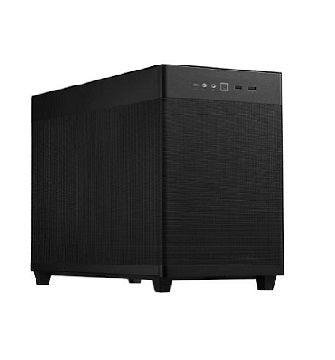
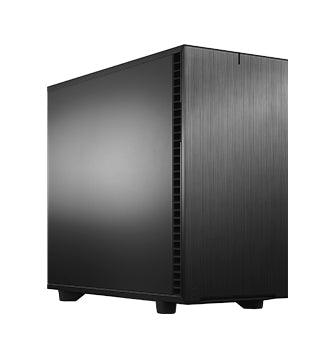
Our Sonox workstation family gives us the flexibility to build around Lightroom, Photoshop and the rest of your creative workflow.

Why Utopia

Built here.
Supported here.

Talk to a specialist

Built in Scotland

Designed, assembled and tested by our team in Kilmarnock.

10 year labour warranty

Long-term support without labour charges hanging over the system.

Lifetime technical support

Speak to real people who understand the system we built.

Built around your software

Configured for Lightroom, Photoshop and the rest of your workflow.

Frequently asked questions

What is the best CPU for Lightroom Classic?

There isn't one processor that's best for every photographer.

Lightroom generally responds particularly well to strong per core CPU performance rather than enormous core counts. Higher core counts can help with tasks such as large exports and preview generation, but workstation CPUs aren't automatically better simply because they contain more cores.

For most photographers, we'd start with a modern Intel Core Ultra 7 or AMD Ryzen 7 class processor and tailor the final choice around the rest of the workflow.

Is Intel or AMD better for Lightroom?

Both can provide excellent Lightroom performance.

The fastest option can change between processor generations and even between different Lightroom tasks. Camera RAW formats can also behave differently.

Rather than tying a workstation to one brand, we recommend choosing whichever platform provides the best performance and value for your particular workflow when you order.

Does Lightroom need a graphics card?

Yes, particularly on a modern Lightroom workstation.

Traditional Lightroom editing isn't especially demanding on the GPU, but Adobe increasingly uses GPU acceleration for image processing and AI powered features.

You don't necessarily need a flagship graphics card, but we'd recommend a modern dedicated GPU for a new professional Lightroom workstation.

How much VRAM does Lightroom need?

Adobe currently recommends 8GB of dedicated GPU memory for full GPU acceleration.

For a new professional workstation, we often recommend 16GB where budget allows, particularly if AI tools form a significant part of your workflow.

How much RAM do I need for Lightroom?

We recommend 32GB as a sensible starting point for a new Lightroom PC.

For professional photographers, high resolution cameras, Lightroom + Photoshop workflows and larger catalogs, 64GB is often the better choice.

Do I need an SSD for Lightroom?

We strongly recommend one.

A fast SSD or NVMe drive improves general system responsiveness and provides fast access to your Lightroom catalog, previews and active photographs.

Larger hard drives and network storage can still be excellent for archive and backup.

Lightroom or Lightroom Classic, what's the difference?

Lightroom Classic is Adobe's traditional desktop photography application, built around local catalogs and file management.

Lightroom is Adobe's newer cloud focused photography application.

Many of the same hardware principles apply to both, but this guide is primarily focused on Lightroom Classic and the more demanding professional desktop workflows commonly associated with it.

Can you build a PC for Lightroom and Photoshop?

Absolutely.

In fact, that's how we'd recommend approaching most professional photography workstations.

Tell us what applications you use rather than simply asking for a “Lightroom PC”, and we'll balance the processor, graphics card, memory and storage around the complete workflow.

template:page.LightroomLanding